
External Hard Drive Backup Setup
Configure a compatible external hard drive or storage device to back up important documents, photos, videos, business files and selected user folders from your computer.
Create a practical backup system for documents, photos, business files and other important data stored on your computer. We help configure external hard drives and compatible storage devices for organized backups, scheduled backup routines and easier data recovery when original files are lost, deleted or unavailable.
From reviewing the files you need to protect and preparing your external storage device to configuring backup schedules and checking completed backups, our service helps create a reliable local backup routine that keeps important copies separate from your computer's primary storage.
Configure a compatible external hard drive or storage device to back up important documents, photos, videos, business files and selected user folders from your computer.
Configure supported backup tools to run automatically on a practical schedule, reducing the need to manually copy important files to your external drive every time data changes.
Identify and select the folders that matter most, including Documents, Desktop, Pictures and business data, so your backup focuses on information you cannot afford to overlook.
Create a clear backup structure on your external storage device so backed-up files remain organized and easier to locate when you need to access or restore information.
Establish a manageable backup routine based on how frequently your files change, helping keep external copies more current instead of relying on a single outdated backup.
Review selected backed-up folders and files after configuration to confirm that important data is being stored on the intended external drive and can be accessed when required.
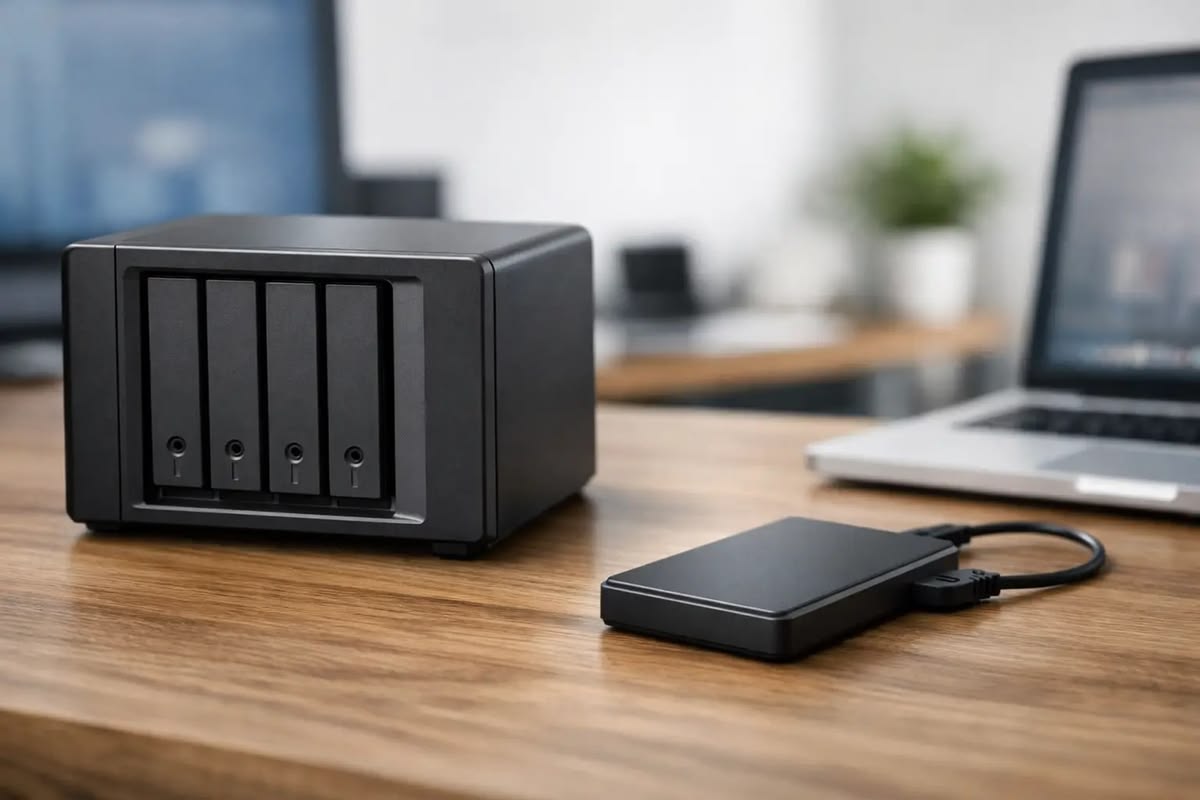
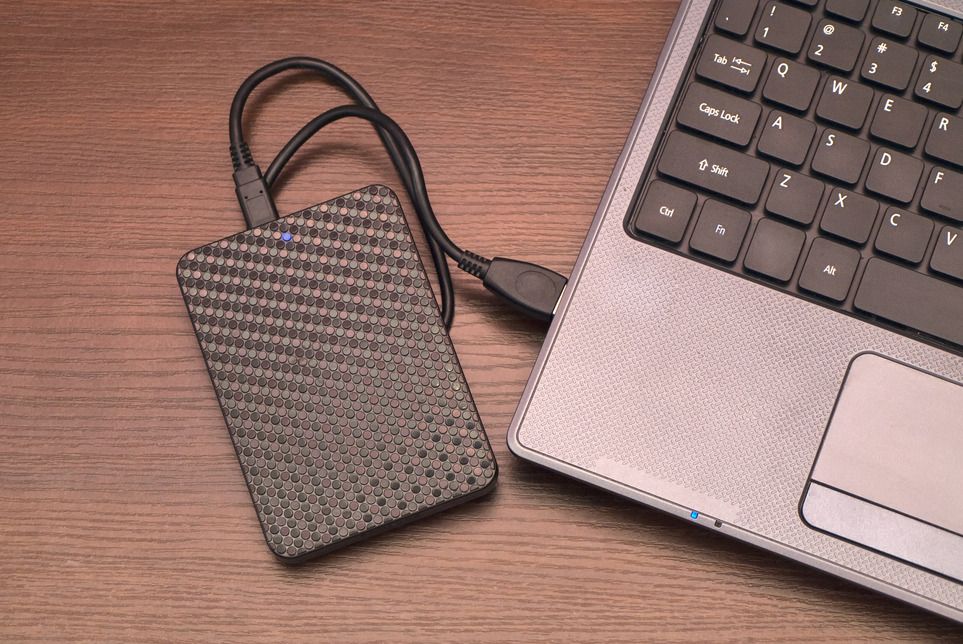
Connecting an external drive and occasionally copying files is not a complete backup strategy. We focus on identifying valuable data, configuring appropriate backup options and checking stored copies so your external drive becomes a structured part of your data protection routine.
We review important documents, media, work folders and other user data to determine what should be included and how much external storage may be required.
We configure compatible backup options around your computer and external storage device, helping reduce dependence on inconsistent manua
We review selected backup locations and files after setup to confirm that data is reaching the external drive and identify backup items that may require additional attention.
Your computer may contain years of documents, personal photos, project files, financial records and other information that exists only on its internal storage. Hardware problems, accidental deletion or system issues can make those files difficult to access. An external backup creates a separate copy of important data that can remain available even when the original files on the computer are no longer accessible.
An external drive with limited free space may not hold all selected data or multiple backup versions, making storage planning important before configuring recurring backups.
Files may be distributed across Desktop, Documents, Downloads, Pictures and application-specific locations. Selecting only obvious folders can leave valuable information outside the backup.
A backup may appear to complete successfully, but important folders should still be reviewed periodically to confirm that expected files are present and accessible on the external storage device.
We identify important folders, documents, media and other user information that should be protected so available external storage is used for the data that matters.
We configure compatible backup options and practical schedules to help maintain more current copies of important information as files change over time.
We review selected backup locations and stored files to help confirm that important information can be located and accessed from the external drive when required.
Our external backup setup process begins by reviewing important computer data and available external storage before preparing the drive, configuring appropriate backup options and verifying that selected files are being stored correctly
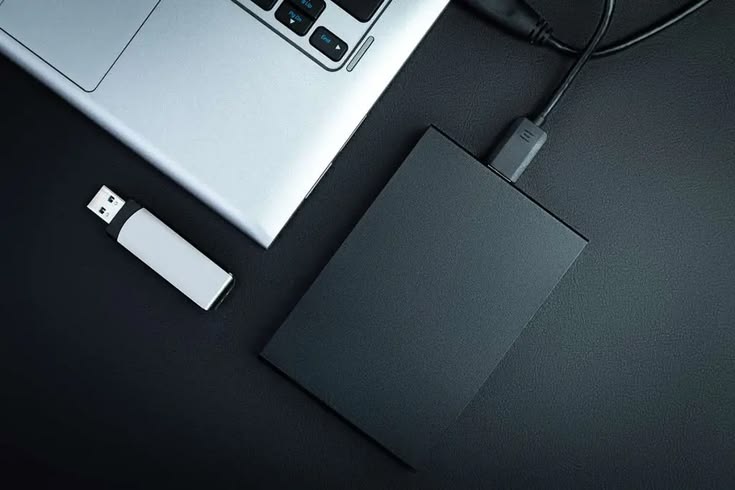
We identify important documents, photos, videos, work folders and other data that should be protected while reviewing available external drive capacity and backup requirements.
We review the external drive, available space and intended backup structure before selecting appropriate folders and preparing the storage device for the backup configuration
We configure supported backup options for selected files and folders, establish an appropriate backup schedule where available and organize data on the intended external storage device.
We review selected backup folders and files after configuration to confirm accessibility and identify missing items, storage limitations or backup settings that may require additional attention.
Find answers to common questions about external hard drive backups, automatic backup schedules, storage capacity, file selection and maintaining reliable copies of important computer data.
Important personal and business data such as documents, photos, videos, spreadsheets, project files and selected user folders are common backup priorities. The exact selection depends on where your valuable information is stored and the capacity of your external drive.
In many cases, yes. Windows and compatible backup applications may support scheduled or automatic backup options. Available features depend on your operating system, backup software and external storage configuration.
The required capacity depends on the amount of data being protected, how frequently files change and whether your backup method stores multiple versions. A drive should provide enough available space for current data and reasonable future backup growth.
It may be possible, but keeping backup data clearly organized is important. Available space must also be considered because unrelated files can reduce the storage available for future backups.
That depends on the backup method and how frequently backups need to run. Some scheduled configurations require the drive to be connected, while other backup routines may involve connecting it only when a backup is performed. Keeping a backup drive disconnected when it is not required can also provide separation from certain computer-level problems.