
Old PC to New PC Data Transfer
Transfer important documents, photos, videos, downloads, desktop files and other compatible user data from your existing computer to the appropriate locations on your new PC.
Switch to a new computer without leaving important digital files behind. We help transfer documents, photos, user folders, browser data and other compatible information from an old PC to a new PC through a structured migration process designed to keep your data organized and accessible.
From reviewing data on your existing computer and preparing files for transfer to organizing information on the new PC and checking transferred data, our migration service helps make the transition between computers more manageable while reducing the risk of missing important files.
Transfer important documents, photos, videos, downloads, desktop files and other compatible user data from your existing computer to the appropriate locations on your new PC.
Move selected user folders and business files while maintaining a clear folder structure so important information remains easy to locate after moving to the new computer.
Transfer supported browser information such as bookmarks, favorites and compatible profile data to help recreate familiar browsing access on your new PC where migration options are available
Assist with transferring compatible locally stored email files, archives and supported account data from the old computer to the new system based on the email application and available migration options.
Arrange transferred files into appropriate folders and locations on the new computer to reduce clutter and make documents, media and other important information easier to access.
Review migrated folders and selected files after transfer to confirm that important data has reached the new computer and identify items that may require additional attention.
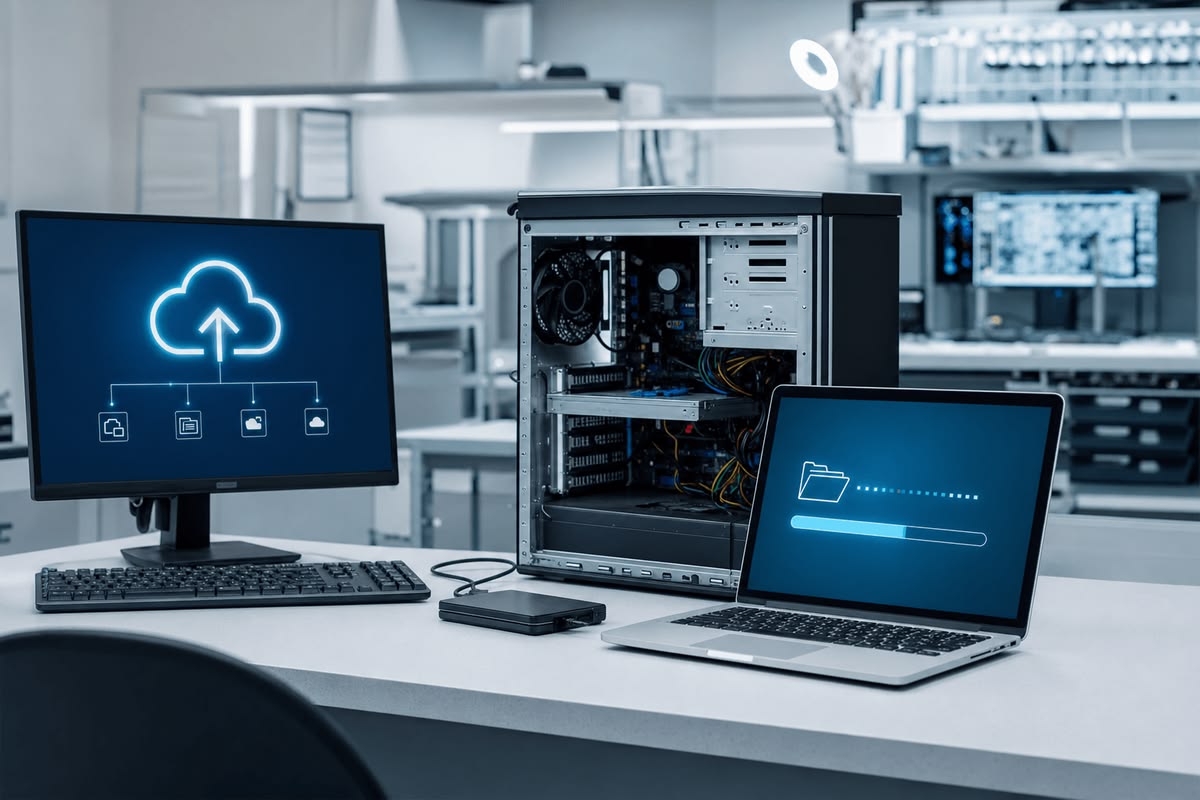
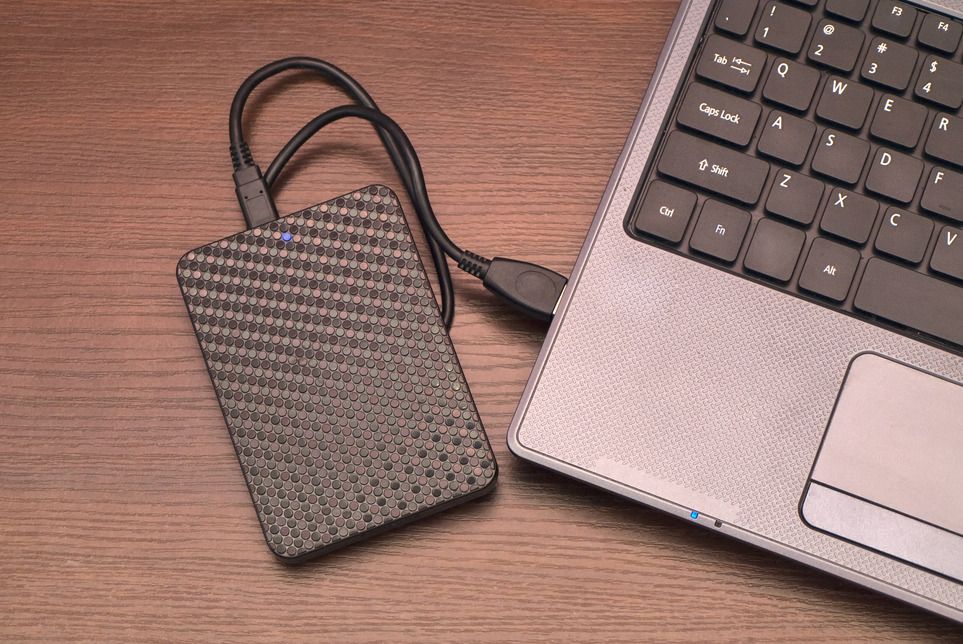
PC migration is more than copying everything from one drive to another. We focus on identifying important user data, selecting appropriate transfer methods and organizing migrated information so your new computer starts with the files you actually need in the right places.
We review important folders, documents, media and other user data before migration to determine what should be transferred and where it should be placed on the new computer
We follow a structured approach for moving compatible data between computers, helping reduce misplaced files, unnecessary duplication and confusion after the migrat
We review selected transferred folders and files on the new PC to confirm accessibility and identify missing or unsupported items that may need additional action.
A new computer may offer better performance, storage and updated technology, but your important files are often still stored across the old system. Documents may be on the desktop, photos inside user folders, downloads in separate locations and business files spread across different drives. A structured migration helps bring essential data together and move it to the new PC without unnecessary confusion.
Important files may be spread across the desktop, Documents folder, Downloads, secondary drives and application-specific folders, making it easy to overlook information during a manual transfer.
If the new computer has less available storage than the old system, transferring everything without reviewing the data first can create capacity problems and unnecessary clutter.
Some information may be stored inside specific applications or proprietary formats and cannot always be transferred through normal file copying without additional export, backup or migration steps
Repeated manual transfers can create duplicate folders, while incomplete copying or overlooked locations can result in important documents and other data being missing from the new computer.
We identify the folders, documents, media and other user information that should be included so the migration focuses on data you actually need on the new PC.
We transfer compatible files into appropriate locations on the new computer to maintain a practical structure and make migrated information easier to find.
We review important transferred folders and selected files after migration to help confirm that the data is accessible from the new computer.
Our data migration process begins by reviewing your old computer, important files and available storage before preparing the transfer, moving compatible data and checking key folders on the new PC.
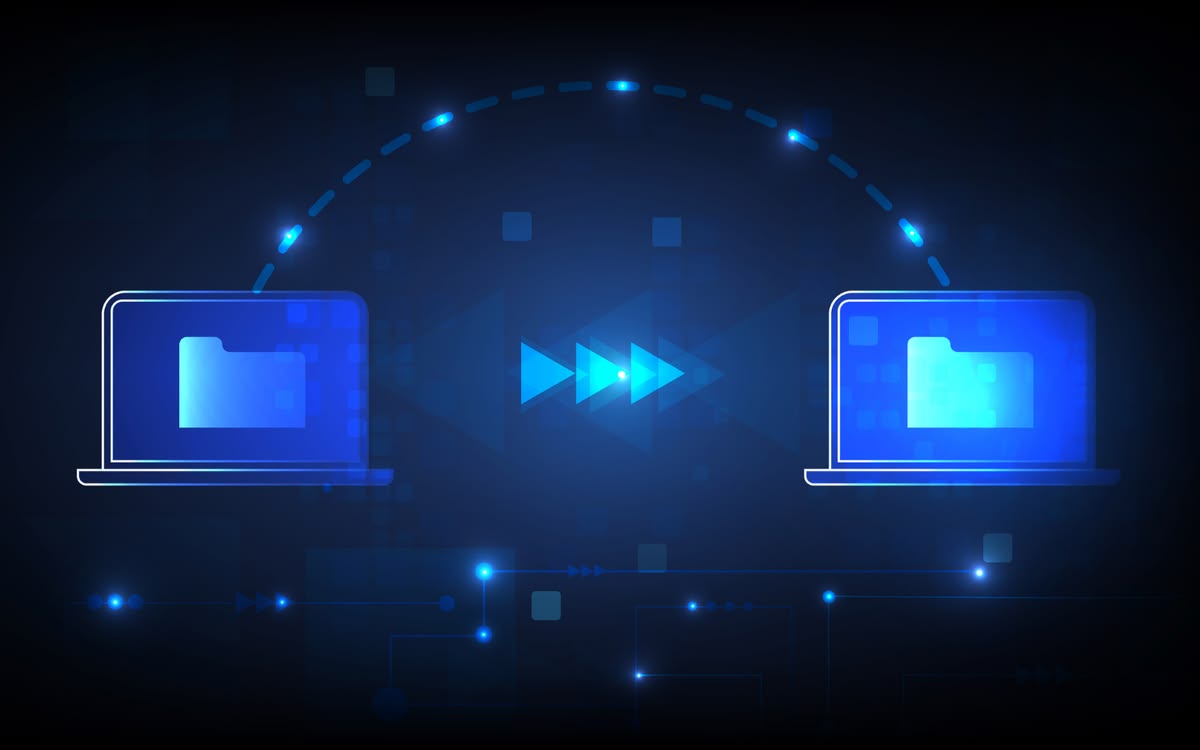
We identify important documents, photos, videos, desktop files, user folders and other data on the old PC while reviewing storage requirements and potential migration limitations.
We determine which files and folders should be transferred, identify appropriate destination locations and prepare a structured migration approach based on the old and new computers.
We transfer selected compatible files, folders and supported user data to the new computer and organize the information into appropriate locations for easier access.
We review important folders and selected files after the transfer to confirm accessibility and identify any missing, unsupported or additional data that may require attention.
Find answers to common questions about transferring files from an old PC to a new PC, supported data, browser information, storage requirements and preparing your computers for migration.
Common user data such as documents, photos, videos, music, desktop files, downloads and other compatible folders can usually be transferred. Additional data may depend on the applications, file formats and configuration of both computers.
Not necessarily. Personal files can generally be transferred, but installed programs usually require separate installation on the new PC. Some application settings, licensed software and system-specific data may also require additional steps or may not be transferable.
In many cases, yes. Supported browsers may allow bookmarks, favorites and certain profile information to be exported, imported or synchronized. Available options depend on the browser and how the existing profile is configured.
A standard data transfer can copy files to the new computer without automatically deleting the originals from the old PC. Any deletion, cleanup or secure data removal should be handled separately after confirming the migration is complete.
Migration time depends on the amount of data, storage drive speed, connection method, file types and condition of both computers. Large media libraries or slower storage devices can require additional transfer time.